Asset Viewer
Turn files outside your docs into explainable, linkable viewer pages.
When to use the asset viewer
Documentation often needs to explain a file that should remain outside the document itself: a helper script, architecture diagram, screen recording, PDF specification, or downloadable archive. The asset viewer keeps that file in public/, gives it a dedicated viewer page, and connects references in MDX to that page.
Enable the feature when readers need more context than a raw file response provides:
import { defineConfig } from "zfb/config";
import { zudoDoc } from "@takazudo/zudo-doc/config";

export default defineConfig(
  zudoDoc({
    assetViewer: true,
    imageEnlarge: true,
  }),
);
imageEnlarge: true supplies the click-to-enlarge experience for images embedded in documents. The image caption's asset-page link still works when enlargement is disabled.
Directory and URL layout
Put viewer-managed files below public/<assetViewerDir>/. With the defaults, this project layout:
public/
└── assets/
    └── demo/
        ├── architecture.png
        ├── demo-project.zip
        ├── diagrams/
        │   ├── link-graph.svg
        │   └── link-graph.svg.meta.json
        ├── hmr-demo.mp4
        ├── parse-frontmatter.js
        ├── scripts/
        │   ├── README.txt
        │   └── check-frontmatter.mjs
        └── spec.pdf
creates two URLs for each file:
/is the raw public file. Images, media players, and download actions use this URL.assets/ demo/ parse- frontmatter. js /is the generated viewer page. It adds file metadata, preview controls, download actions, and links back to documents that reference the asset.files/ demo/ parse- frontmatter. js/
Root-relative URLs continue to work when the site has a non-root base; zudo-doc applies the configured base when rendering them.
Configuration
The six top-level zudoDoc() fields are:
| Field | Default | Purpose |
|---|---|---|
assetViewer | false | Generate viewer pages and enable manifest-backed MDX entry points. |
assetViewerDir | "assets" | Choose the directory below public/ and the raw URL prefix. |
assetViewerRoutePrefix | "files" | Choose the viewer-page URL prefix. It must differ from assetViewerDir. |
assetViewerExclude | [] | Exclude matching asset-relative glob paths from viewer generation. |
assetViewerIndex | false | Generate the listing page at the viewer route prefix. |
assetViewerIndexing | false | Opt individual viewer-page outputs into search, llms.txt, and the sitemap. |
For example, this keeps source maps and drafts available as ordinary public files without generating viewer pages for them:
export default defineConfig(
  zudoDoc({
    assetViewer: true,
    assetViewerExclude: ["**/*.map", "drafts/**"],
  }),
);
Do not place viewer-managed files under public/<assetViewerDir>/client/. zfb reserves the client/ path for browser assets, and the asset viewer reports that collision during its scan.
The assets index page
Enable the index alongside the asset viewer to generate a browsable listing at /:
export default defineConfig(
  zudoDoc({
    assetViewer: true,
    assetViewerIndex: true,
  }),
);
The index displays the included assets as a directory tree. Folder rows are collapsible disclosure toggles rather than links; they show aggregate file counts and sizes for their subtrees. File rows link to the corresponding viewer pages and show metadata such as file type and size. When no included assets exist, the page shows an empty-state message instead of a tree.
assetViewerExclude applies to both viewer-page generation and the index, while excluded files remain available at their raw public URLs. Metadata sidecars are also omitted from the listing. Like individual viewer pages, the index exists in every configured locale.
This showcase enables the feature, so you can open the live assets index. To expose the index in your own site header, add an unversioned item to headerNav:
export default defineConfig(
  zudoDoc({
    assetViewer: true,
    assetViewerIndex: true,
    headerNav: [
      { label: "Assets", labelKey: "nav.assets", path: "/files", versioned: false },
    ],
  }),
);
versioned: false keeps the link out of archived-version routes. Locale-aware navigation adds the active locale prefix automatically. See Header Navigation for the full item contract.
Opting asset pages into indexing
Asset viewer pages stay out of the search index, llms.txt, and the sitemap by default. Opt into each output independently with assetViewerIndexing:
export default defineConfig(
  zudoDoc({
    assetViewer: true,
    assetViewerIndexing: {
      search: true,
      llmsTxt: true,
      sitemap: true,
    },
  }),
);
The setting has the shape false | { search?: boolean; llmsTxt?: boolean; sitemap?: boolean } and defaults to false. A key is enabled only when it is explicitly true, so a partial object leaves every omitted output disabled. assetViewer: true is also required; setting an indexing key alone does nothing.
Each key controls one output:
searchadds asset viewer pages tosearch-index.json. Their IDs use theasset:prefix.llmsTxtadds a## Filessection tollms.txtand appends asset pages tollms-full.txt. Text-like assets include up to 8 KB of their body, followed by an explicit truncation marker when the body is longer. Binary assets are listed as one-line stubs without a body.sitemapadds the/viewer routes to the sitemap.files/ . . .
This showcase enables all three keys, so its generated search index, LLM files, and sitemap demonstrate the complete opt-in behavior.
Author entry points
All entry points below are live examples backed by the demo corpus in this repository.
A Markdown link
A Markdown link to a manifest-backed raw asset is rewritten to the viewer URL and decorated with its file type and size:
Open parse-frontmatter.js(2.9 KB) in its generated viewer.
[parse-frontmatter.js](/assets/demo/parse-frontmatter.js)External links, hash links, excluded paths, and raw URLs that are not in the manifest remain ordinary links.
An asset card
Use Asset when the file is a primary resource. The card offers both the contextual viewer and the raw download:
<Asset src="/assets/demo/demo-project.zip" />Asset also accepts optional title and description props for document-specific wording.
A code excerpt
Use AssetCode to quote a range directly from a source asset without copying it into the MDX file:
export function parseFrontmatter(source, options = {}) {
  const { strict = false } = options;

  if (!FENCE_RE.test(source)) {
    return { data: {}, body: source, hasFrontmatter: false };
  }

  const end = source.indexOf(`\n${FENCE}`, FENCE.length);
  if (end === -1) {
    if (strict) throw new Error('Unterminated frontmatter block');
    return { data: {}, body: source, hasFrontmatter: false };
  }

  const yaml = source.slice(FENCE.length, end).replace(/^\r?\n/, '');
  const body = source.slice(end + FENCE.length + 1).replace(/^\r?\n/, '');

  return { data: parseYamlSubset(yaml), body, hasFrontmatter: true };
}
<AssetCode src="/assets/demo/parse-frontmatter.js" lines="27-44" />The build extracts and highlights the requested lines. Its footer links to the same range in the complete viewer. An excerpt is limited to 200 lines.
An image caption link
A standalone image whose source is in the asset manifest keeps the normal document image and gains an Open asset page link in its caption:
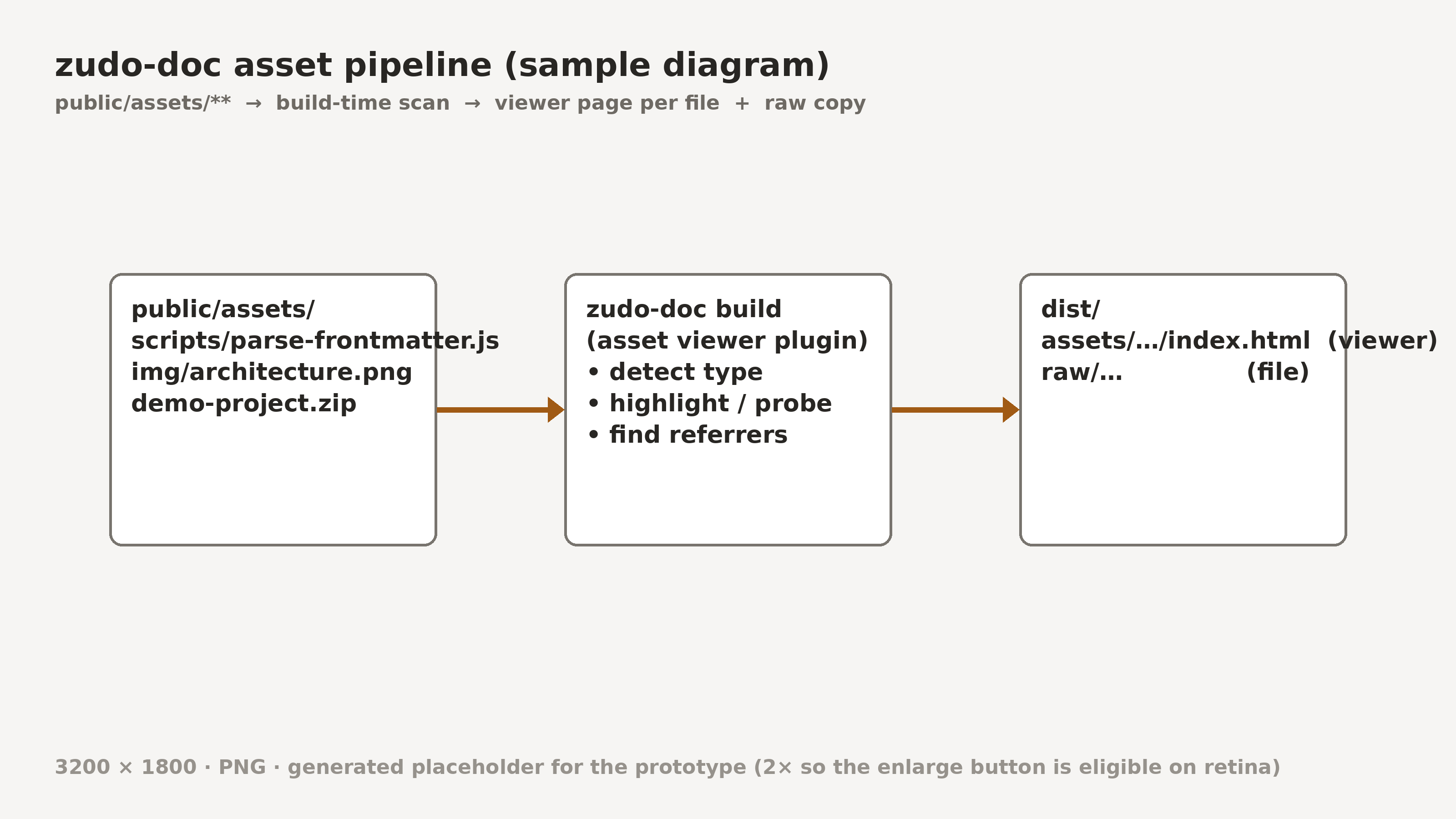

The link includes the image dimensions. With imageEnlarge: true, readers can also open the same image in the enlargement dialog. See Image Enlarge for its controls and authoring rules.
Optional metadata sidecar
Add <file>.meta.json beside an asset to replace its viewer title or add a description. The demo corpus includes diagrams/ beside link-graph.svg:
{
  "title": "Asset link graph",
  "description": "How a document link maps to the raw asset URL and its generated viewer page."
}
Both fields are optional strings. The sidecar must be valid JSON no larger than 2 KB. It supplies build metadata only: the scanner does not create a separate viewer page for the .meta.json file.
What each viewer shows
Every viewer page has a file header, file metadata, raw-file actions, a details panel, and links back to documents that reference the asset. At 1024px and above, the details panel and those back-links sit in a side rail beside the preview — for every file kind, code and text included — and a chevron tab pinned to the right edge of the viewport collapses that rail when the preview needs the full width. Narrower viewports stack the same blocks below the preview and show no tab. Its main preview depends on the detected file kind:
Code and text(2.9 KB) show highlighted source with line anchors plus copy and wrapping controls. Files up to 1 MiB receive syntax highlighting; larger text files use a plain preview. Plain previews show at most 2,000 lines, and text files over 5 MiB fall back to download-only.
Images(126 KB) provide Fit and 1:1 sizing, checker and dark backgrounds, dimensions, and the enlargement dialog.
Video(203 KB) uses the browser's native controls and reports detected dimensions and duration when available.
PDF(1.5 KB) embeds the browser PDF viewer and keeps a download fallback alongside it.
Archives and other unsupported formats(2.1 KB) show a download panel instead of attempting an unsafe or misleading preview.
Format detection checks file contents as well as the extension. A mismatch falls back safely rather than embedding the file as the claimed media type.
Whether the rail is collapsed or expanded is remembered by the browser and restored before the page paints, so the choice survives a reload and carries over to the next asset page opened. The rail and its tab belong to the viewer itself: there is no configuration key that turns either of them on or off.
Development behavior
Editing an existing asset refreshes its viewer during pnpm dev. Adding, removing, or renaming an asset changes the watch set, which is pre-enumerated when the plugin starts, and requires restarting pnpm dev. Until then, the assets index also remains stale. Adding the first document link to an asset requires a restart so the link graph and requested excerpts can be rebuilt.
Use pnpm dev:stable when you are adding or reorganizing files frequently; it uses the build-then-serve development mode.
Rendering without zfb
. and . remain zfb-bound: createAssetPageView(ctx) and createAssetIndexPageView(ctx) both take a ChromeContext and wrap their output in DocLayoutWithDefaults, so they only work inside a zfb page.
For a non-zfb host (a different framework, a static export step, a preview tool), import the plain-prop body modules instead. They take no ChromeContext and pull in no @takazudo/zfb* package:
import { AssetPageBody, resolveAssetPageLabels, renderAssetDetailsPrepaintScript } from "@takazudo/zudo-doc/asset-page/body";
import { AssetIndexPageBody, resolveAssetIndexPageLabels } from "@takazudo/zudo-doc/asset-index-page/body";

// Resolve labels ahead of time from your own translator + locale.
const pageLabels = resolveAssetPageLabels(t, locale);
const indexLabels = resolveAssetIndexPageLabels(t, locale);

// Render a single asset's viewer body.
<AssetPageBody entry={asset} locale={locale} rawUrl={rawUrl} labels={pageLabels} showViewSource={false} />;

// Render the directory-tree index body.
<AssetIndexPageBody entries={entries} labels={indexLabels} base="/" routePrefix="files" dir="assets" />;
Both bodies render only the viewer content — a header, actions, the stage/details grid (or, for the index, the directory tree), and their own inline bootstrap <script>. Neither provides DocLayout: the caller owns the outer page shell, including the .zd-content wrapper that supplies content typography, the <html>/<head>/<body> structure, and any header/sidebar/footer chrome.
AssetPageBody also needs one piece of markup placed in the page <head>, ahead of the rest of the head content: the details-rail pre-paint script, which restores a persisted collapsed/expanded preference before first paint so a reload never flashes the wrong state. Call renderAssetDetailsPrepaintScript() for it — it returns a fresh <script> VNode on every call (never reuse one instance across pages):
<head>
  {renderAssetDetailsPrepaintScript()}
  {/* the rest of your <head> content */}
</head>
AssetPageBody and AssetIndexPageBody each already embed their own bootstrap script inline, so no separate import is needed to wire up their interactive controls (copy/wrap buttons, the details-rail toggle, the index's expand/collapse-all). Import . or . directly only when composing a custom layout from the individual leaf pieces instead of the full body.
Generated-route behavior
Individual asset viewers are leaf pages, while the optional route-prefix page is an asset listing. Both exist in every configured locale and preserve that locale in generated document and index links: for example, a Japanese reference opens /, not /. The routes stay out of the docs sidebar. They also stay out of the search index, llms.txt, and sitemap unless the corresponding assetViewerIndexing key is explicitly enabled.
Viewer chrome resolves through the asset.* translation namespace, including Details, Type, Fit, and Checker, plus asset.detailsCollapse and asset.detailsExpand — the two accessible labels the rail's collapse tab swaps between. English and Japanese strings ship with the package; other locales follow the normal translation fallback chain. Override individual strings through ZudoDocConfig.translations. To restore the old default-locale-only behavior, add / to defaultLocaleOnlyPrefixes; see Internationalization.
Viewer pages honor the site's noindex setting. They intentionally keep documentation chrome such as the header and footer while hiding the document sidebar and table of contents. The chevron tab described above drives the asset page's own details rail and nothing else: it never restores the document table of contents, which stays hidden on viewer pages even when tocToggle is enabled.